

The web seems to be going through another major wave of referrer spam right now. Small businesses and freelancers are especially affected. In this article, I’ll explain what referrer spam actually is, how to spot it, and how to keep it out of your Google Analytics 4 property.
What is Google Analytics referrer spam?
Definition and how it works
Referrer spam can seriously distort your analytics by generating fake visits that look real at first glance. We’ve seen cases where client sites appeared to receive thousands of visits overnight from highly questionable sources.
Goals and effects of referrer spam
The goal is usually to get suspicious websites to show up in your reports and attract attention. The result is misleading data that makes your traffic look healthier, or at least busier, than it really is.
Identifying referrer spam in GA4
Typical characteristics of spam traffic
Spam traffic often leaves obvious patterns behind: extremely short sessions, unusual engagement metrics, or sudden traffic spikes with no real explanation. Those anomalies are usually your first sign that something is off.
Checking your data for anomalies
In one recent client audit, we saw analytics numbers more than double compared to the previous week. That sounds great until you look closer. Most of the spike came from a single referrer, which is a classic warning sign.
Excluding referrer spam in Google Analytics GA4
Filters and settings
This is the technical part, but fortunately it’s manageable. With the right settings in GA4, you can exclude this traffic fairly quickly and improve the quality of your reporting right away.
How to block Google Analytics spam in GA4
1. Find out whether it really is a spam referrer. To do this, go to your GA4 property and under Reports → Acquisition → Overview, open the “Sessions by Session source (manual)” card.

Sessions by source – manual view
2. Identify the spam referrer. In the chart, the suspicious spike should stand out clearly. Hover over it to see the traffic source in more detail.
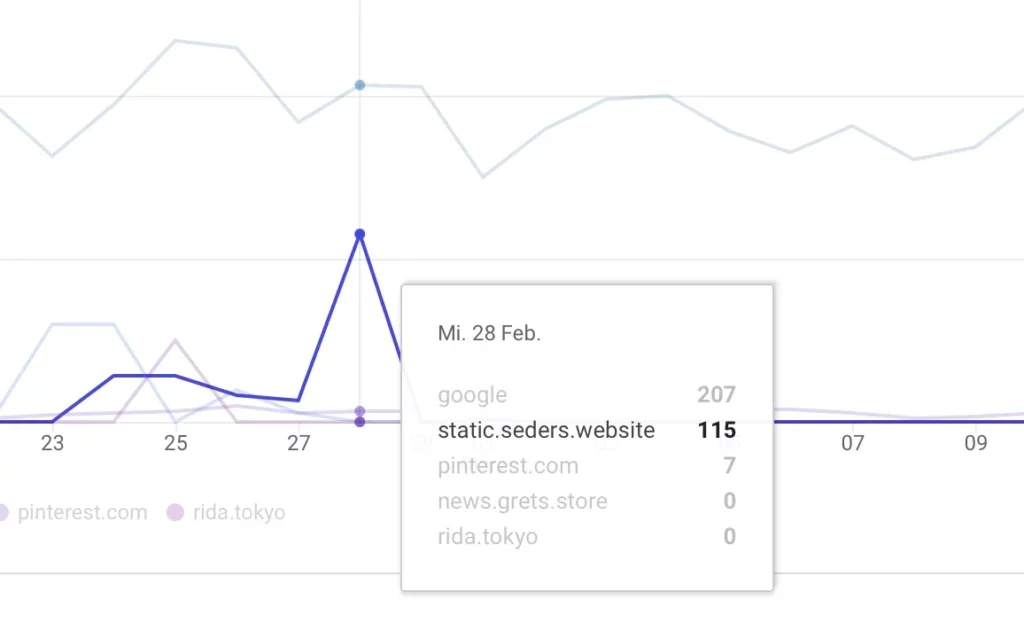
Suspicious traffic from referring sources
3. Visit the address. Copy the referrer’s URL and open it in a private browser tab. In most cases, you’ll quickly see what kind of site it is. Often it’s some kind of questionable “service provider” offering fake traffic or similar bot-driven services.
4. Add the filter. Once you’ve confirmed that the source is generating spam, it’s time to block it. In Analytics, click the gear icon in the lower left and go to Admin → under “Data collection and modification” select Data Streams → click your stream → at the bottom under Google Tag click Edit tag settings → under Settings expand “Show more” and then click “List of unwanted referrals”.

The spam referrer list
Add the spam referrer there and save your changes. From that point on, traffic from that source should no longer show up in your Analytics reports.
Why regular checks are important
The dynamic nature of referrer spam
Spammers constantly change tactics. A filter that works today may need to be expanded tomorrow. This is an ongoing cat-and-mouse game.
Impact on data quality and decision-making
Bad data leads to bad decisions. That’s why we regularly review analytics for our clients and make sure important decisions are based on trustworthy numbers.
Referrer spam can feel tedious, but it’s worth dealing with. With the right filters and regular monitoring, you can protect your data quality and make sure your website reports reflect reality instead of noise.
Top 5 reasons why blocking referrer spam is essential
-
Improved data quality. Referrer spam fills your reports with fake visits and makes analysis less reliable. Filtering it out gives you cleaner, more accurate data for decision-making.
-
More accurate traffic analysis. Once the spam is gone, you get a clearer picture of where your real traffic comes from and how users actually behave on your site.
-
More realistic conversion data. Spam can inflate pageviews and sessions, which makes conversion rates look worse than they really are. Clean data helps you evaluate performance more honestly.
-
Better audience insight. Clean analytics makes it easier to understand your actual visitors, which helps you align your content, products, and services more effectively.
-
Better use of time and resources. Analyzing distorted reports wastes effort. Removing spam means your team can spend time acting on real signals instead of chasing fake ones.