
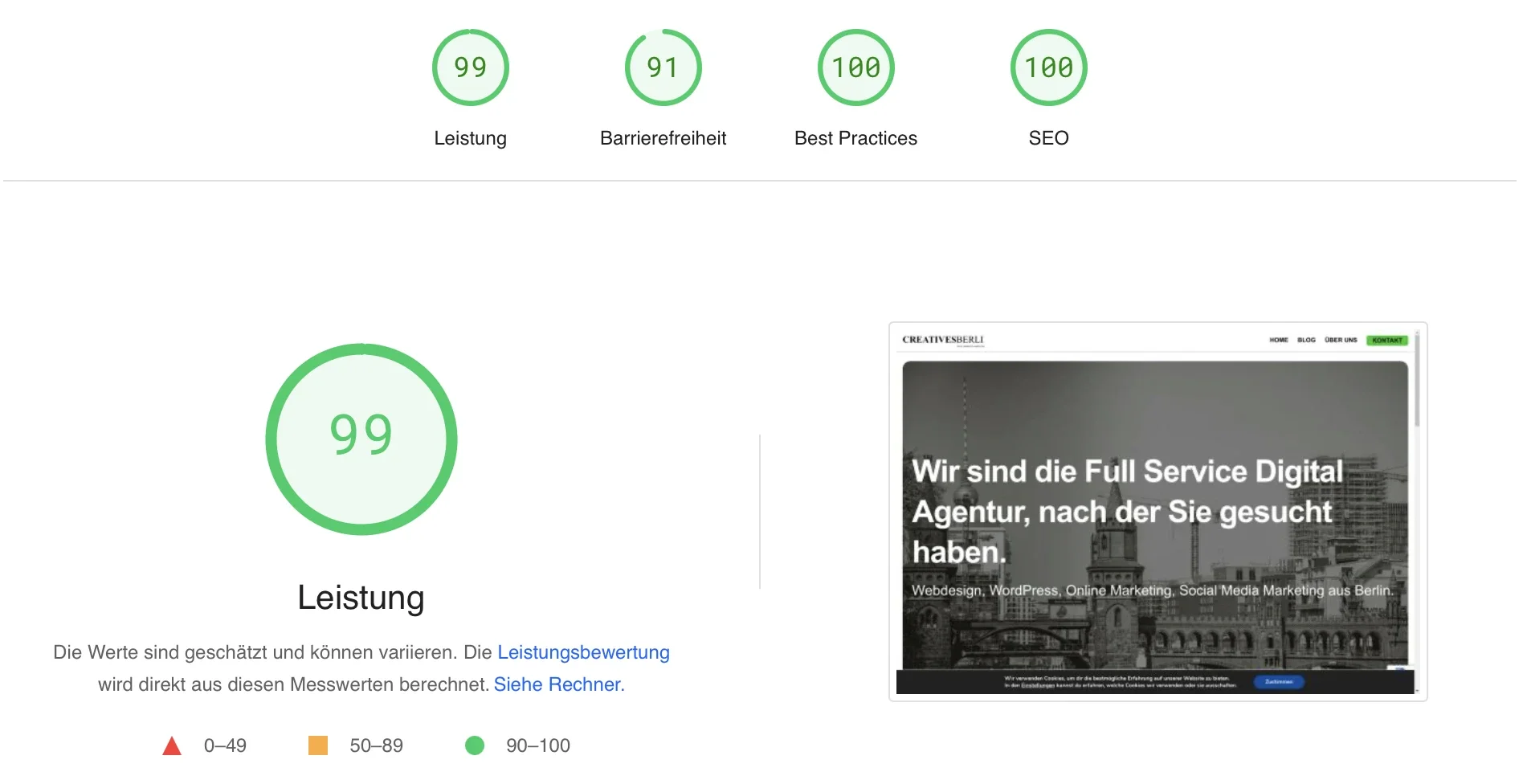
Why a slow WordPress site costs you customers
53 percent of mobile users leave a page that takes longer than 3 seconds to load. At the same time, Core Web Vitals have been an official Google ranking factor since 2021. A slow WordPress site therefore costs you twice: less visibility in search and fewer conversions on the site itself.
This guide shows you where WordPress typically slows down and which measures really help – from the hosting choice to caching and image optimisation. By the end, you’ll know which levers make the biggest difference and when WordPress reaches its limits.
1. The right hosting for better WordPress performance
The right hosting is the foundation of a fast website. Shared hosting may be cheap, but it can severely impact your loading times since you are sharing server resources with many other websites.
Recommended hosting solutions:
-
Managed WordPress Hosting: Providers such as WP Engine or Kinsta offer hosting specifically tailored to WordPress, with optimised servers and caching solutions.
-
VPS (Virtual Private Server): For larger sites, a VPS offers more control and resources than shared hosting.
-
Cloud Hosting: Services like AWS or Google Cloud offer scalable hosting solutions – particularly interesting for growing websites.
2. Use caching to improve WordPress performance
Caching is one of the most effective methods for speeding up your site. A static version of your page is created so that the server does not have to reload all data on every request.
The best caching plugins for WordPress:
-
WP Rocket: An easy-to-use premium plugin that integrates page caching, browser caching and gzip compression.
-
W3 Total Cache: A popular plugin with many options, though it may require some technical knowledge.
-
LiteSpeed Cache: Ideal if you are using LiteSpeed servers, as it offers server-side caching and image optimisation.
3. Optimise your images for faster loading times
Images are often responsible for a large proportion of loading time, especially on media-heavy pages. Image optimisation is a must for reducing load time without compromising quality.
Tips for image optimisation:
-
Compress images: Use tools like TinyPNG or plugins such as Smush or Imagify to reduce file size.
-
Choose modern formats: Opt for WebP, a modern format that achieves smaller file sizes without reducing image quality.
-
Enable lazy loading: With lazy loading, images are only loaded when the user scrolls to them. Plugins such as Lazy Load by WP Rocket help you with this.
4. Minify CSS, JavaScript and HTML
Every extra line of code slows your site down. By minifying CSS, JavaScript and HTML you can remove unnecessary whitespace, comments and redundant characters to reduce file size.
Plugins for code minification:
-
Autoptimize: Minifies CSS, JavaScript and HTML, and combines files to reduce the number of requests.
-
Fast Velocity Minify: Offers similar functions to Autoptimize but with additional settings for advanced users.
5. Optimise the database for a leaner website
WordPress stores everything in the database – from post revisions and comments to spam. Over time this can bloat your database and slow down loading times.
How to optimise your database:
-
WP-Optimize: This plugin removes unnecessary data and compresses your database to keep it lean.
-
Limit post revisions: Set a limit for saved post revisions to avoid data clutter. Add this line to wp-config.php:
define('WP_POST_REVISIONS', 3);
6. Reduce external scripts and plugins
Many WordPress themes and plugins load unnecessary external scripts on every page, even when they are not needed. This burdens the browser and slows the page down.
How to reduce external scripts:
-
Deactivate superfluous plugins: Delete or deactivate plugins you are not using.
-
Avoid external scripts: Reduce the use of external scripts such as Google Fonts, social media widgets or videos – or load them asynchronously.
7. Use a Content Delivery Network (CDN)
A Content Delivery Network (CDN) ensures that your site’s content is loaded from servers close to the user. This means your page can load faster regardless of where the visitor is located.
Recommended CDN providers:
-
Cloudflare: A free CDN that also offers security features.
-
KeyCDN: A user-friendly and cost-effective CDN optimised specifically for WordPress.
-
StackPath: Offers powerful CDN services with many optimisation options.
8. Disable pingbacks and trackbacks
Pingbacks and trackbacks slow your site down because they send additional requests to the server.
How to disable pingbacks and trackbacks:
- Go to Settings → Discussion in your WordPress dashboard and deactivate the option “Attempt to notify any blogs linked to from the article.”
9. Enable Gzip compression
Gzip compression reduces the file size of your website before it is sent to the user’s browser. This saves bandwidth and shortens loading times.
How to enable Gzip compression:
- Most caching plugins such as WP Rocket and W3 Total Cache offer a straightforward way to enable Gzip. Alternatively you can activate it via your .htaccess file.
10. Optimise your site for mobile devices
More than half of all web traffic comes from mobile devices. A slow mobile site can cause users to leave and your rankings to drop.
Tips for mobile optimisation:
-
Responsive design: Make sure your WordPress theme is mobile-friendly and works cleanly across all screen sizes.
-
Mobile-first testing: Regularly check your site with Google PageSpeed Insights in Mobile mode – this is where the biggest performance issues usually hide.
-
Touch-friendly design: Tap targets at least 48 × 48 pixels, sufficient spacing between links. This is part of Core Web Vitals and directly affects your ranking.
5 reasons why you should check WordPress performance regularly
1. Improve search engine rankings
Google favours fast websites. Regular performance checks ensure that your site remains fast and efficient, which has a positive impact on your ranking.
2. Better user experience
A slow website leads to a high bounce rate. By regularly checking loading speed you can make timely adjustments to ensure that your visitors have an optimal experience.
3. Detect errors early
Regular tests allow you to identify technical issues or slowdowns early and fix them before they become larger problems that slow your site down or cause it to drop out of Google’s index.
4. Make optimal use of server resources
Regular performance analysis helps you ensure that your server and resources are being used efficiently. This can even help you save on hosting costs by eliminating unnecessary processes and scripts.
5. Maintain security
Performance issues can be a sign of security vulnerabilities. Regular checks ensure that your site is not only fast but also secure, by helping you identify vulnerable scripts and plugins.
When WordPress reaches its limits
With the right measures you can make WordPress significantly faster – often by 50 to 70 percent. But at some point every WordPress setup hits a wall:
-
Every plugin stays a dependency. The more plugins, the larger the attack surface and the update burden.
-
Dynamic rendering has a cost. WordPress rebuilds every page on every request – without caching. With caching you’re fast, but never as fast as a purely static site.
-
Sub-second LCP is hard on mid-range hosting. No matter how well you optimise, PHP execution plus database queries add up.
If your goal is a low-maintenance, consistently fast marketing website, it’s worth looking at modern alternatives to WordPress – for example static sites with Astro, which need no plugins, no updates and no database.
Frequently asked questions about WordPress performance
How can I make WordPress really fast?
The three biggest levers are hosting, caching and image optimisation. Good managed WordPress hosting or a VPS lays the foundation. A caching plugin like WP Rocket typically halves loading times. WebP images with lazy loading usually cover the rest. See chapters 1 to 3 of this article for more.
Why is WordPress so slow?
WordPress isn’t inherently slow, but it ships with a stack that bloats quickly: plugins, page-builder themes, unoptimised images, missing caching and shared hosting all add up. Each single factor costs 200 to 500 milliseconds of loading time. Combined, that adds up to a three-second page.
How can I make my website faster?
Start with the server, then the assets, then the code. Choose hosting that matches your traffic. Optimise images and enable caching. Then minify CSS and JavaScript. This order delivers the biggest gain per hour invested – regardless of whether you use WordPress or another system.
How much RAM does WordPress need?
The default WP_MEMORY_LIMIT is 40 MB. For normal sites, 256 MB is enough; WooCommerce and heavy plugins often need 512 MB. More important than the value itself is the hosting type: a VPS with 2 GB RAM and SSD storage performs better than shared hosting with 8 GB and an oversubscribed CPU.
Why is WordPress so slow on my computer?
This usually refers to the local development environment like XAMPP or LocalWP – not the live site. Common causes: outdated PHP version, insufficient RAM in the Docker config, or XDebug enabled. For live performance, your hosting provider matters, not your local machine.
Is WordPress still worth it in 2026?
Yes, for blogs, news portals and small shops with moderate performance requirements. No, if you want a marketing website with top Core Web Vitals or a low-maintenance setup. Modern alternatives like Astro deliver measurably better loading times with less ongoing maintenance.
How do I increase memory in WordPress?
In wp-config.php, add this line above the comment “That’s all, stop editing!”:
define('WP_MEMORY_LIMIT', '256M');For admin pages there is an additional WP_MAX_MEMORY_LIMIT. If this has no effect, your hosting often doesn’t allow higher limits – in which case only a better plan or a provider switch will help.
Is WordPress still up to date?
WordPress has around 43 percent market share and is under active development. But the core architecture – PHP plus MySQL, dynamic rendering, plugin ecosystem – is over 20 years old. Still solid for content sites; for high-performance websites, static or hybrid approaches lead the way.
What is better than WordPress?
“Better” depends on the use case. Webflow excels at design-led websites without requiring code. Ghost is faster and leaner for blogs and newsletters. For performance-focused marketing sites, static generators like Astro are the best choice – no plugins, no database, lightning-fast delivery.
Does WordPress have a future?
Yes, but in an increasingly narrow niche. WordPress remains strong for content-heavy projects, blogs and classic publishing. For modern marketing websites focused on performance, security and low maintenance, the number of alternatives is growing – and many agencies are migrating existing sites.
How often should you update WordPress?
Install security updates immediately, ideally automatically. Apply minor updates weekly to monthly. Always test major updates on a staging environment first. Plugins and themes need the same discipline – outdated components are the most common attack vector.
Conclusion: Make your WordPress site fast and efficient
With the right optimisations you can dramatically reduce the loading time of your WordPress site. A faster site leads not only to a better user experience but also to higher rankings on Google. Follow these tips and your website will be faster, more efficient and more successful before you know it.
Want to make your WordPress site measurably faster – without weeks of plugin tinkering? I analyse your site, find the concrete bottlenecks and implement the optimisations. Book a WordPress Performance Audit →